How Star Creates Sprite Animations with AI
Type “wizard casting a fireball.” Get a playable animation in seconds.
The Pipeline at a Glance
| Step | What Happens |
|---|---|
| 1 | You describe your character and animation type |
| 2 | We build a smart prompt for Gemini 3.1 Flash |
| 3 | Gemini generates a sprite sheet on a green background |
| 4 | Green screen removal creates true transparency |
| 5 | Frames are extracted, trimmed, and normalized |
| 6 | Game-ready animation, playable instantly |
The Problem
Sprite animations are the lifeblood of 2D games. A character that walks, attacks, jumps, and idles requires dozens of carefully drawn frames. Traditionally, this means hiring a pixel artist, waiting weeks, and spending hundreds of dollars per character.
For a platform where anyone can make a game in 2 minutes, that doesn’t work.
We needed a way to generate sprite animations from a text prompt, instantly, and have them actually work in a game. No sprite sheet editors. No frame-by-frame hand-drawing. Just describe your character and what it should do.
Step 1: You describe what you want
You type something like:
- “A knight with a sword, walk cycle”
- “A robot, idle animation”
- “A cat wizard casting a spell”
The AI understands what you mean. It knows “walk cycle” means legs moving and arms swinging. It knows “idle” means subtle breathing. It knows “attack” means a weapon swing.
You can pick from common types—walk, run, idle, attack, jump, death, hurt, and cast—or describe something completely custom.
Step 2: The smart prompt
Behind the scenes, we take your description and construct a very specific prompt for Gemini 3.1 Flash (via the Nano Banana 2 model on fal.ai).
The prompt asks for a sprite sheet: a grid of frames arranged in a square. For a 4-frame animation, that’s a 2x2 grid. For 9 frames, 3x3. For 16 frames, 4x4.
The key insight
Gemini can’t generate transparent backgrounds. If you ask for “transparent background,” you get weird checkerboard patterns or inconsistent results. So we don’t ask. We ask for a bright green background (#00FF00), like a Hollywood green screen. This gives us a clean, consistent result every time.
The prompt also includes specific instructions about grid layout, frame ordering (top-left is frame 1, read left-to-right), style (pixel art by default), and a negative prompt to avoid blurry results, grid lines, and character inconsistency.
Step 3: Gemini generates the sprite sheet
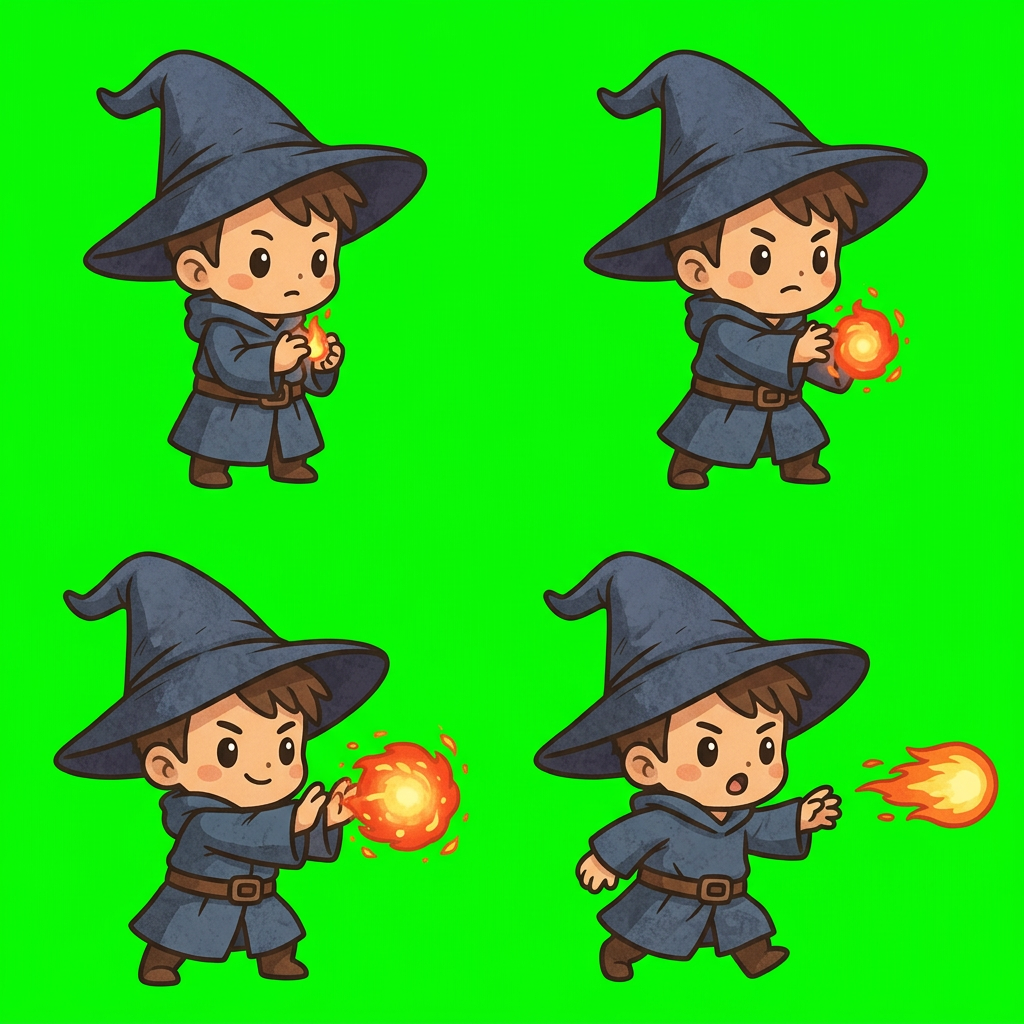
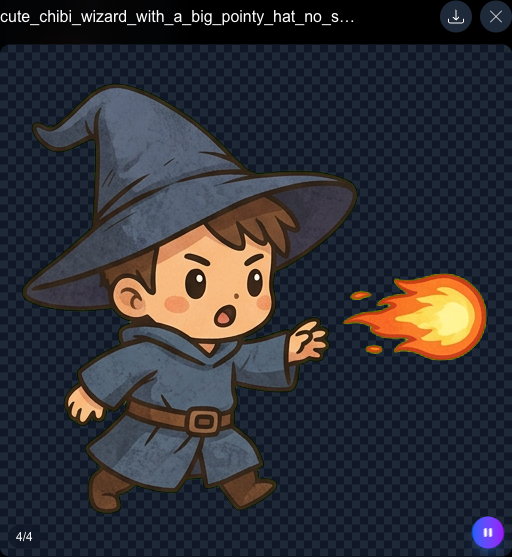
Gemini 3.1 Flash generates a single image containing all animation frames arranged in a grid. For a 4-frame fireball animation, you get a 1024x1024 image with four 512x512 frames—your character in different casting poses, all on a bright green background.
For higher frame counts (9 or 16 frames), we request a 2048x2048 image to maintain quality per frame. The whole generation takes a few seconds.
Step 4: The green screen pipeline
This is where the magic happens. We run the generated image through a multi-stage processing pipeline:
Letterbox detection
Sometimes Gemini adds white or gray borders around the image. We scan inward from each edge, detect uniform light-colored bands, and convert them to green so they get removed in the next step.
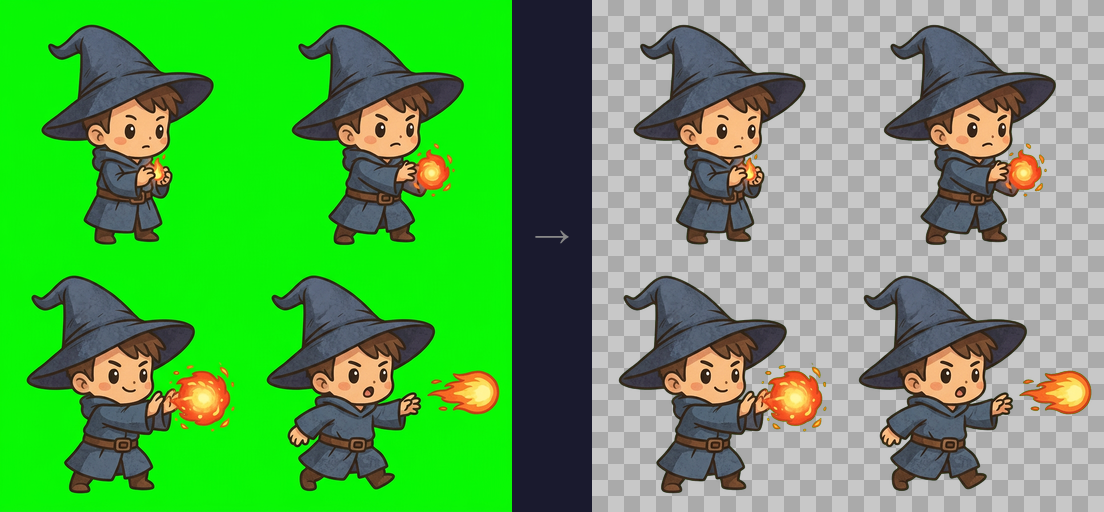
Green screen removal
We process every pixel. Pure green pixels become fully transparent. Semi-green pixels at character edges get “despilled”—we calculate how green they are, reduce opacity proportionally, and remove the green color cast. This preserves smooth anti-aliased edges without a green fringe.
The result
A clean sprite sheet with true transparency. No green halos. No jagged edges.
Step 5: Frame extraction
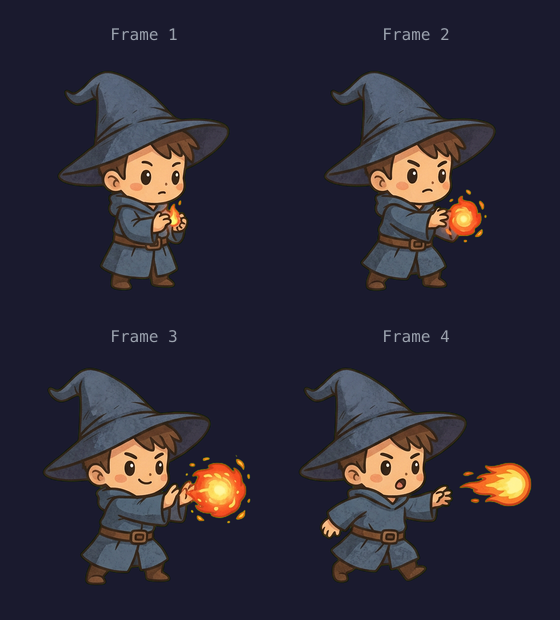
We slice the sprite sheet into individual frames using the grid dimensions. A 2x2 grid on a 1024x1024 image gives us four 512x512 frames.
But we’re not done. Sometimes Gemini adds faint dark borders between grid cells. We handle this with a two-pass algorithm:
- Extract every frame and detect dark borders at the edges
- Calculate the maximum border thickness across all frames
- Trim all frames by the same amount so they stay consistent
- Resize back to target dimensions
This ensures your animation plays back smoothly with no visual popping between frames.
Step 6: Game-ready in milliseconds
Everything gets uploaded to cloud storage: the full sprite sheet (for games that want one image) and every individual frame as a separate PNG (for frame-by-frame control).
Each animation gets metadata: frame count, FPS, loop behavior, and URLs for every frame. The game code animates it with just a few lines:
// Animate in the game loop
let elapsed = 0;
game.loop((dt) => {
  elapsed += dt;
  const frameIndex = Math.floor((elapsed * 8) % frames.length);
  ctx.drawImage(frames[frameIndex], x, y, 64, 64);
});
That’s it. Text prompt to playable animation.
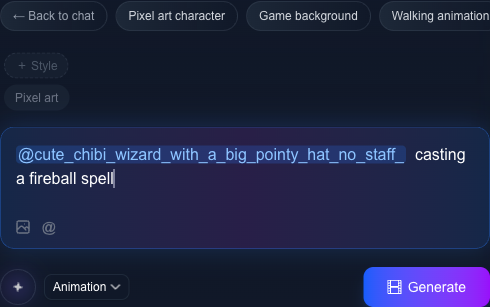
Generate a character image first, then generate animations—and they’ll look like the same character. The system passes your original image to Gemini as a reference, maintaining visual consistency across walk, idle, attack, and every other animation.
Without this, each animation might look like a different character. With it, your wizard looks like your wizard in every frame of every animation.
Why This Matters
Before this pipeline, AI-generated games had two options for character animation:
Option 3 takes seconds, not weeks.
Key Takeaways
- 1Gemini 3.1 Flash generates sprite sheet grids from text prompts in seconds.
- 2A green-screen pipeline converts AI-generated images into game-ready transparent sprites.
- 3Reference images keep your character looking consistent across all animations.
- 4You don’t need to understand any of this. Just say “make a knight game” and it happens.
Or make a full game with animated characters.